VIDSAIL SUPPORT
HELP WITH INSTALLATION,
DOWNLOADS, CONVERSION
AND UPDATES
Find help with installing VidSail, downloading supported online media, managing the queue, converting local files, checking the four external media engines, and resolving validation or update problems.Browse the guides and frequently asked questions below, or contact VIDSAIL when you still need assistance.

VidSail Guides and Documentation
Choose the guide that matches what you need. Each document has been
updated for VidSail 2.0.0 and the current Windows 10/11 64-bit release.

Full Feature Overview
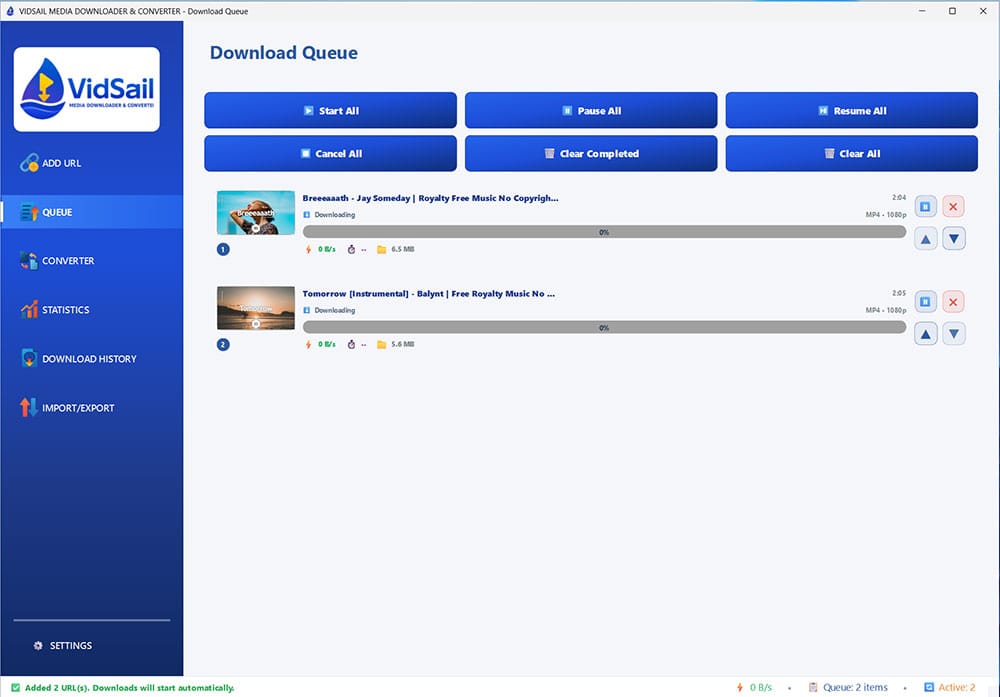
Explore the complete VidSail 2.0.0 feature set through clear explanations and interface screenshots.The overview covers URL validation, batch downloads, queue management, local file conversion, clipboard monitoring, statistics, history, Import / Export, all seven Settings tabs, the four external media engines, and verified updates.


Complete User Guide
A detailed beginner-friendly guide to installing and using VidSail.Learn how to download supported online media, manage the queue, convert local files, review history and statistics, configure settings, check engine health, install updates, find logs, and troubleshoot common problems.

Windows Installation Guide
Official installation and first-launch instructions for VidSail 2.0.0 on Windows 10 and Windows 11 64-bit systems.The guide covers downloading and extracting the official ZIP package, running the MSI installer, Windows security prompts, first launch, engine checks, updates, and troubleshooting.
Quick Installation — VidSail 2.0.0 for Windows
Step 1: Download the Windows Package
Download the official VidSail Windows package from the Downloads page .
File name:
vidsail_windows.zip
Only download VidSail from the official vidsail.com website.
Step 2: Extract the ZIP File
Right-click vidsail_windows.zip and select Extract All.
Choose where Windows should place the extracted files, then open the extracted folder after the process finishes.
Do not run the installer directly from inside the compressed ZIP file.
Step 3: Run the Installer
Double-click:
vidsail_media_downloader.msi
Follow the Windows installation wizard. Review the licence agreement before accepting it and continuing.
Windows SmartScreen may display a warning when an application is new or has not yet built a widespread reputation.
- Continue only when the package came from the official VidSail website.
- Select More info.
- Review the displayed application information.
- Select Run anyway when you are satisfied that the package is genuine.
Step 4: Launch and Check VidSail
Open VidSail from the Windows Start Menu or the desktop shortcut when one was created during installation.
Confirm your preferred download folder, then open:
Settings → EnginesSelect Recheck Engines and confirm that all four external media engines are available:
- yt-dlp
- FFmpeg
- FFprobe
- Deno
Keep VidSail and Its Media Engines Up to Date
Application Updates
-
Open VidSail and go to:
Settings → General - Select Check for Updates to check for a newer VidSail application release.
- When an update is available, review the version information and follow the on-screen instructions.
- Restart VidSail when requested so the application changes can be applied.
Engine Updates
-
Open:
Settings → Engines - Select Recheck Engines to review the installation status, version, and location of all four external engines.
- Select Update Engines when a newer engine bundle is available.
- VidSail verifies the downloaded engine package using SHA-256 before installation.
Automatic Update Checks
Automatic update checks can run after VidSail starts. Application updates and engine updates are checked separately. No notification is shown when neither type of update is available.
VidSail Frequently Asked Questions
Find quick answers about installation, Windows security prompts, supported media, updates, engine health, troubleshooting, and responsible use.
A: Download vidsail_windows.zip from the official VidSail Downloads
page. Extract the ZIP file, open the extracted folder, and run
vidsail_media_downloader.msi. Follow the installation wizard, then
launch VidSail from the Start Menu or desktop shortcut.
A: Windows SmartScreen may display this message when an application is
new or has not yet built a widespread reputation.
A: VidSail 2.0.0 is currently released for Windows 10 and Windows 11
64-bit systems.
Separate macOS Apple Silicon, macOS Intel, and Linux x64 releases are
planned, but they are not included in the current Windows release.
Release information will be published on the VidSail website when those
versions are ready.
A: VidSail 2.0.0 is currently released for Windows 10 and Windows 11
64-bit systems.
Separate macOS Apple Silicon, macOS Intel, and Linux x64 releases are
planned, but they are not included in the current Windows release.
Release information will be published on the VidSail website when those
versions are ready.
A: VidSail uses the current yt-dlp engine to support many online media
services.
Website support can change when services modify their pages, login
requirements, regional availability, or technical protections. Check
the Supported Sites page and use Validate URL inside VidSail to test a
specific link.
A: Yes. On the Add URL page, enable Convert to MP3 after download when
that option is available.
You can also use VidSail’s File Converter to convert supported local
video or audio files to MP3 and other available audio formats.
A: VidSail can check for updates automatically after launch.
For the main application, open Settings → General and select
Check for Updates.
For yt-dlp, FFmpeg, FFprobe, and Deno, open Settings → Engines and use
Recheck Engines or Update Engines.
Downloaded update packages are checked with SHA-256 verification before
installation.
A: VidSail 2.0.0 supports 64-bit editions of Windows 10 and Windows 11.
The recommended system has at least 4 GB of RAM, although 8 GB is
recommended, plus at least 1 GB of free disk space for VidSail, its
engines, and temporary update files. Additional storage is required for
your downloaded and converted media.
A: Online services can change without notice, so a link that worked
previously may temporarily stop working.
Try these checks:
1. Confirm your internet connection is working.
2. Try Validate URL again or test another supported URL.
3. Open Settings → Engines and select Recheck Engines.
4. Install an engine update when one is available.
5. Confirm the output folder exists and is writable.
6. Check that sufficient disk space is available.
7. Restart VidSail and try again.
8. Open the diagnostic log through Settings → Tools if the problem
continues.
When contacting support, include your VidSail version, Windows version,
the URL source, the exact error, and the latest log when requested.
A: Yes. VidSail is a free application, and current application and
engine updates are provided without a VidSail licence or subscription
fee.
A: Use the VidSail Contact page and select Bug Report or Feature Request
as the enquiry type.
For technical issues, include your VidSail version, Windows version,
what you were trying to do, the exact error message, and a screenshot
or log file when available.
A: VidSail uses four external media engines:
• yt-dlp for supported online media information and downloading
• FFmpeg for merging, conversion, and media processing
• FFprobe for media inspection and diagnostics
• Deno for JavaScript challenge processing when required
Open Settings → Engines to check their status, versions, and locations.
A: Open Settings → Tools and use the Diagnostics or Logs control.
The log can help identify validation, download, conversion, update,
or engine problems. Do not edit the log before sending it to support,
but review it first and remove any private information you do not want
to share.
A: VidSail does not impose its own artificial daily download quota.
Actual availability and speed can still depend on the source website,
your account access, regional availability, internet connection,
technical restrictions, and applicable law.
A: No. VidSail must only be used when you have the legal right or
permission to download, convert, store, or use the content.
You are responsible for complying with copyright law, website terms,
account restrictions, and other applicable rules.